How to register on the Property Tax Portal
|
-
Click on the website link Town of Milton Property Tax Portal.
-
On the log in/sign up page click on Sign Up.
-
Enter your email address. This will be your login ID.
-
Create a password that meets the password requirements shown on the screen.
-
Select Create New User.
-
Check your email for a verification message.
-
Open the email and select the verification link to complete your registration.
|
| How to log in to the Property Tax Portal |
- Go to the Town of Milton Property Tax Portal.
-
On the log in/sign up page click on Log in.
-
Enter your email address and password.
For first-time users or new registrations only:
-
-
-
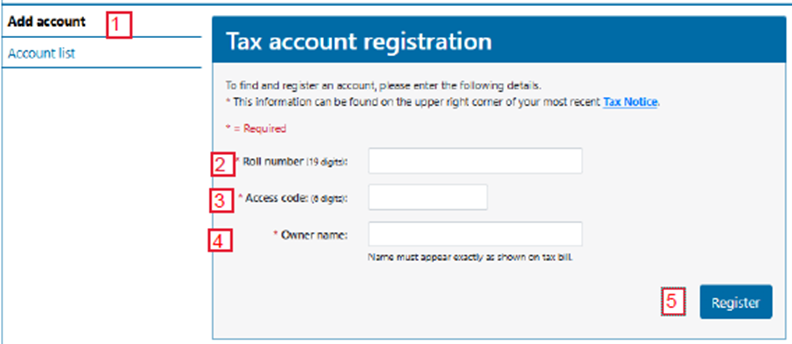
Once logged in a Tax Account Registration page will appear.
-
Enter your property tax information as it appears on your most recent property tax bill.
-
Select Register to complete your registration.
|
| How to add additional tax accounts |
-
Sign in to the Town of Milton Property Tax Portal.
-
From the left-hand menu, select Add Account.
-
Enter the required property information as it appears on your most recent tax bill:
- Select Register to add the account.
|
| How to update your billing method (eBilling) |
-
Sign in to the Town of Milton Property Tax Portal.
-
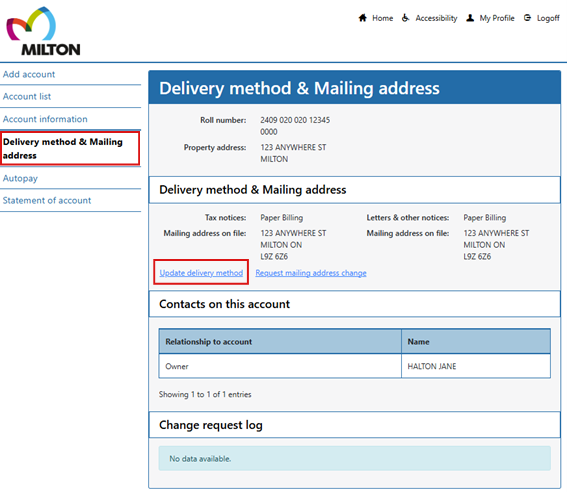
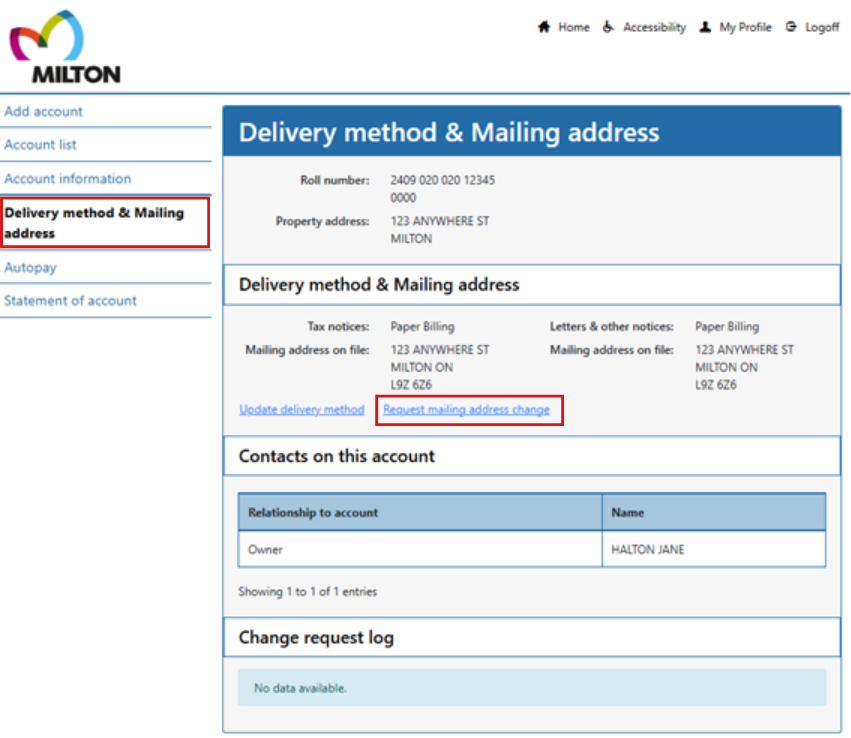
From the left-hand menu, select Delivery Method & Mailing Address.
-
Select Update Delivery Method.
-
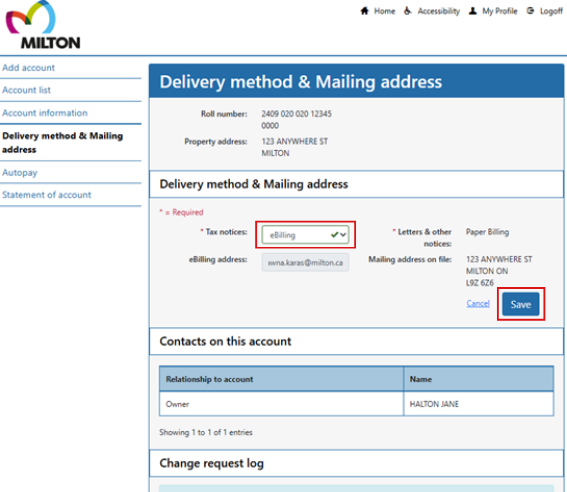
Use the drop-down menu beside Tax Notices and select eBilling.
-
Select Save to confirm your preference.
|
| How to update your mailing address |
- Sign in to the Town of Milton Property Tax Portal.
-
From the left-hand menu, select Delivery Method & Mailing Address.
-
Select Request Mailing Address Change.
-
Fill out the required fields with your new mailing address information.
-
Select Send request to submit your change.
|
| How to enrol in Autopay |
- Sign in to the Town of Milton Property Tax Portal.
-
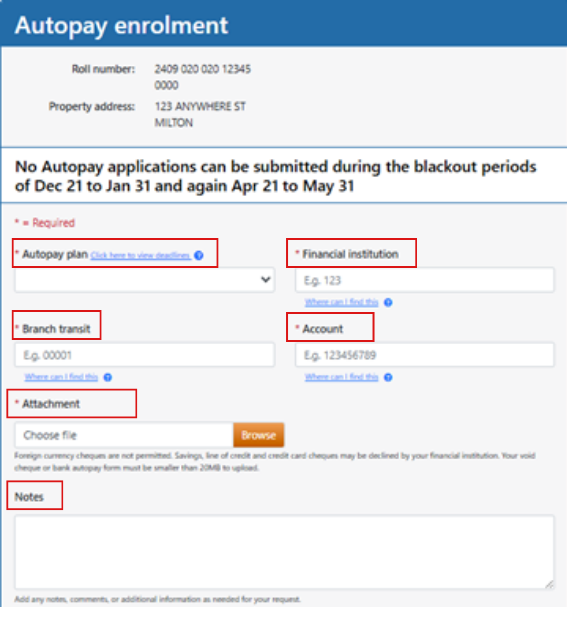
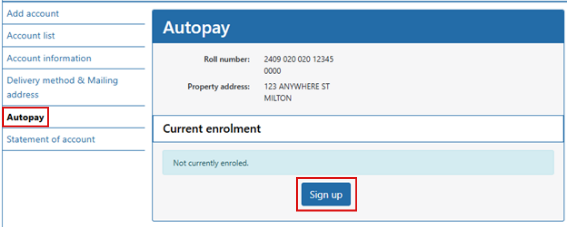
From the left-hand menu, select Autopay.
-
The Current eNot currently enrolled.
-
Select Sign up.
-
Complete the required information, including:
-
Read the Terms and Conditions and select, Yes, I agree to the Terms and conditions.
-
Click Save.
-
After saving, a confirmation message will appear indicating your request has been submitted. The Town of Milton Tax Department will review your application. You will receive an email once your enrolment is confirmed or if additional information is required.
|
| How to generate a Statement of Account |
- Sign in to the Town of Milton Property Tax Portal.
-
From the left-hand menu, select Statement of Account.
-
Click the Generate statement of account button.
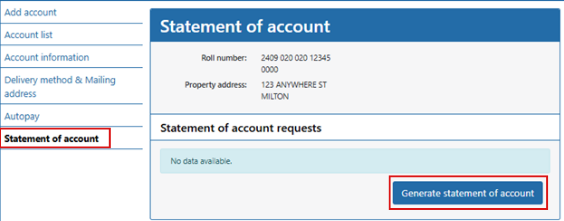
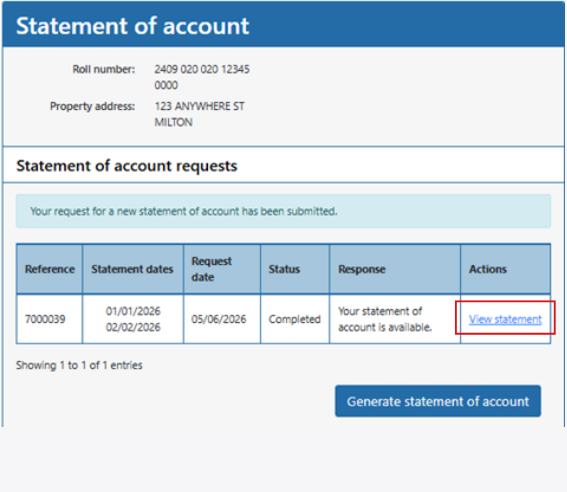
- Enter the dates for the statement of account you require and click Submit request.
- The statement of account requested will now be available by selecting View statement under the Actions column.
|
| How to view tax notices |
Property owners registered on the Property Tax Portal can view tax notices (2026 onwards).
-
Sign in to the Town of Milton Property Tax Portal.
-
From the left-hand menu, select Account Information.
-
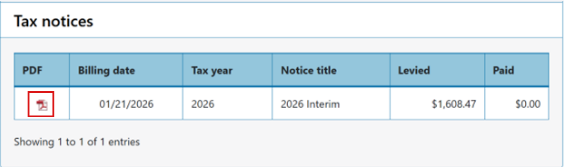
Scroll down to Tax notices section.
-
Select the desired tax notice to open the PDF.
|